How to Get a Natural Summer Glow: AI Skin Glow in Hypic (2026 Guide)
How to Get a Natural Summer Glow: AI Skin Glow in Hypic (2026 Guide)

How to get a natural summer glow is one of the most searched photo editing trends in 2026, and for good reason. Everyone wants radiant, sun-kissed skin in photos without looking overly filtered or fake.
The good news is that the AI Skin Glow in Hypic makes this easier than ever. With a few simple adjustments, you can create warm, healthy-looking skin while preserving natural texture and facial details.
Quick Answer
If you’re wondering how to get a natural summer glow in Hypic, simply upload your photo, open the Retouch tab, select AI Skin Glow, and adjust the intensity slider between 30% and 50%. Finish with a subtle warmth filter for a realistic sun-kissed look.
The entire process takes less than three minutes and works well for selfies, portraits, Instagram posts, and summer vacation photos.
Why the Hypic AI Skin Glow Tool is a Game Changer for Summer Photos
Traditional beauty filters often blur skin and create an artificial appearance. The AI Skin Glow tool in the Hypic photo editor app works differently by intelligently enhancing brightness, texture, and warmth without removing natural skin details.
Instead of applying a generic overlay, the AI analyzes facial areas separately and performs local semantic changes. This helps maintain visual realism thresholds while adding the healthy glow commonly associated with summer photography.
Another advantage is that the tool works alongside other Hypic skin retouch features, allowing users to combine ambient lighting correction, blemish retouching, and subtle facial refinements in one workflow.
Step-by-Step Guide: How to Get a Natural Summer Glow in Hypic
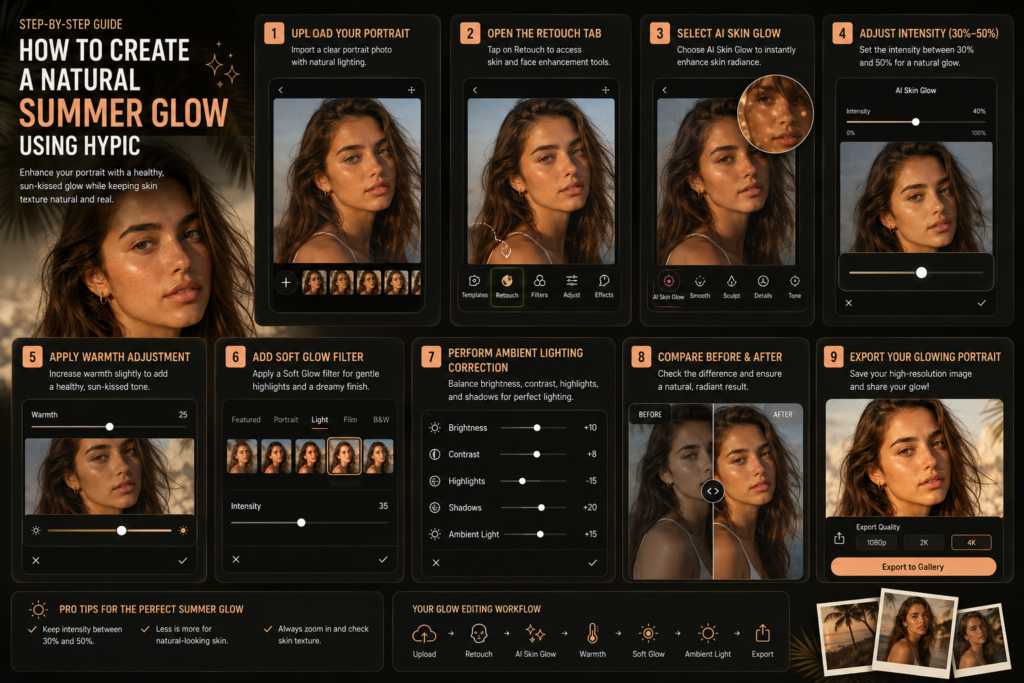
Step 1: Upload Your Image :
Open the Hypic app on Android or iOS and import your photo from the gallery. Once the image loads, tap the Retouch tab located on the editing toolbar.
This section contains most of Hypic’s AI-powered beauty and skin enhancement tools.
Step 2: Select the AI Skin Glow Feature :
Inside the Retouch menu, locate the AI Skin Glow feature.
The tool automatically detects facial areas and applies intelligent enhancements that improve skin luminosity while maintaining texture contrasts and saturation. Unlike standard beauty filters, it focuses specifically on realistic skin enhancement.
Step 3: Adjust the Intensity Slider for a Natural Finish :
This is the most important step.
Many users apply the effect at full strength, which often creates an unrealistic appearance. Instead, adjust the intensity slider gradually until you achieve a soft, healthy glow.
For most photos:
- 20%–30% = subtle enhancement
- 30%–50% = natural summer glow
- 50%+ = stronger beauty effect
The goal is to enhance, not completely transform.
Step 4: Refine with Warmth and Sunkissed Filters :
To complete the look, use Hypic’s warmth controls and soft glow filters.
A slight increase in color tone warmth can mimic golden-hour sunlight and create a genuine summer atmosphere. Avoid pushing orange tones too far, as this can make skin appear unnatural.
For best results, combine:
- AI Skin Glow
- Soft Glow Filter
- Warmth Adjustment
- Ambient lighting correction
This combination creates a balanced and realistic finish.
3 Pro Tips for Keeping Your AI Summer Glow Looking 100% Authentic
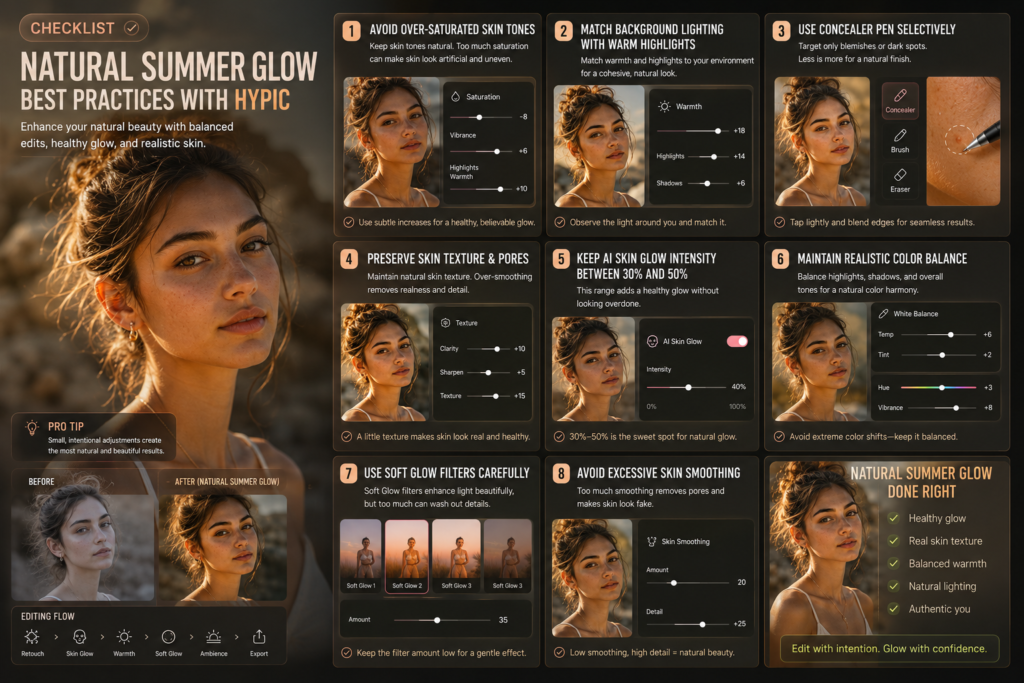
Avoid Over-Saturating the Skin Tones
One of the biggest mistakes in summer photo editing is increasing saturation too aggressively.
Instead of boosting every color, make subtle adjustments. Natural skin contains variation, and preserving those tones helps maintain realism.
If your skin starts looking orange or overly red, reduce saturation immediately.
Match Your Background Lighting with Warm Highlights
Your face and background should feel like they belong in the same scene.
If you add a warm summer glow to your skin but leave the background cool and blue, the edit may look disconnected. Use gentle lighting adjustments across the entire image to create consistency.
This simple trick dramatically improves authenticity.
Use the Concealer Pen Tool to Selectively Blend Textures
The Concealer Pen is one of the most underrated tools inside Hypic.
Instead of relying entirely on automated smoothing, use the Concealer Pen to remove specific blemishes while keeping skin texture intact. This creates a polished result without the plastic-skin effect often seen with aggressive beauty filters.
Hypic AI Skin Glow vs. Traditional Beauty Filters: What’s the Difference?
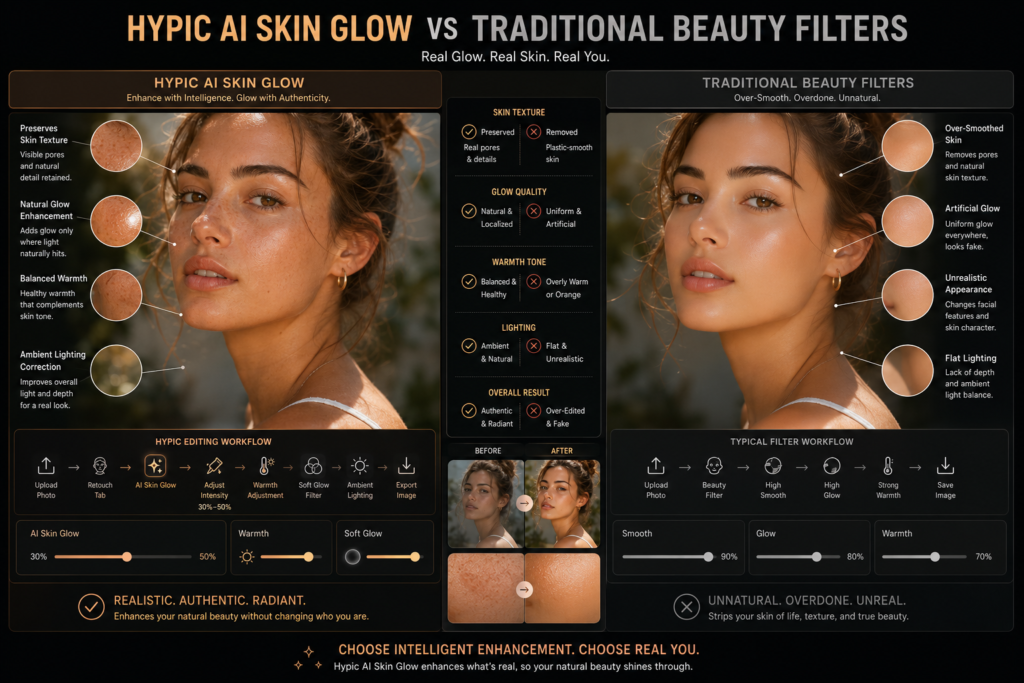
| Feature | Traditional Beauty Filters | Hypic AI Skin Glow |
| Skin Texture | Often removes pores completely | Preserves natural texture |
| Lighting | Global overlay effect | Intelligent localized enhancement |
| Realism | Can look artificial | More natural finish |
| Customization | Limited controls | Adjustable intensity slider |
| Facial Features | May distort appearance | Preserves facial structure |
| Overall Result | Filtered look | Natural summer glow |
The biggest difference is quality preservation. Hypic focuses on enhancing what already exists instead of replacing it with heavy digital overlays.
Using the official version is generally recommended because it offers better stability, updates, and account security.
Troubleshooting Common Mistakes When Editing Summer Photos in Hypic
If your edits aren’t looking natural, check these common issues:
Skin Looks Too Smooth
Reduce the AI Skin Glow intensity and lower any additional skin smoothing settings.
Glow Looks Fake
Decrease the effect strength and increase texture visibility. Real skin should still show natural details.
Colors Look Too Orange
Lower the warmth slider and reduce saturation slightly.
Background Doesn’t Match
Adjust ambient lighting correction so the entire photo shares a consistent mood and color temperature.
Photo Lost Texture After Export
Always export at the highest available quality setting. High-resolution exports help preserve details and prevent compression artifacts.
Conclusion
The AI Skin Glow in Hypic offers one of the easiest ways to create a realistic summer-inspired look without relying on heavy filters. When used carefully, it enhances brightness, warmth, and skin quality while preserving natural texture and facial features.
If you’re learning how to get a natural summer glow, Hypic provides an excellent balance between AI automation and manual control. Start with subtle adjustments, keep the intensity slider moderate, and you’ll achieve professional-looking summer photos that still look like you.
FAQs
How can I make my skin look glowing in photos naturally?
Use AI Skin Glow at a low intensity and combine it with subtle warmth adjustments. Avoid excessive smoothing to preserve natural skin texture.
What is the Hypic app AI Skin Glow feature?
It is an AI-powered retouching tool that enhances skin brightness, warmth, and texture while maintaining a realistic appearance.
How do you use the Retouch tool on the Hypic app?
Open your photo, tap the Retouch tab, select the desired feature, and adjust the sliders until you achieve the desired effect.
Can you get a summer skin glow without changing your facial structure?
Yes. AI Skin Glow focuses on lighting and texture enhancement rather than reshaping facial features.
How do you keep skin texture while using digital beauty filters?
Use moderate settings and avoid maximum smoothing levels. The Concealer Pen can help remove imperfections without affecting surrounding texture.
What is the best app for natural summer glow editing?
Hypic is among the most popular options because it combines AI Skin Glow, soft glow filters, and advanced retouching tools in a simple interface.
Can you edit a natural summer glow with AI?
Yes. Modern AI tools can intelligently enhance lighting and skin tone while maintaining realistic details.