How to Cancel Hypic Subscription in 2026(iPhone, Android & PayPal)
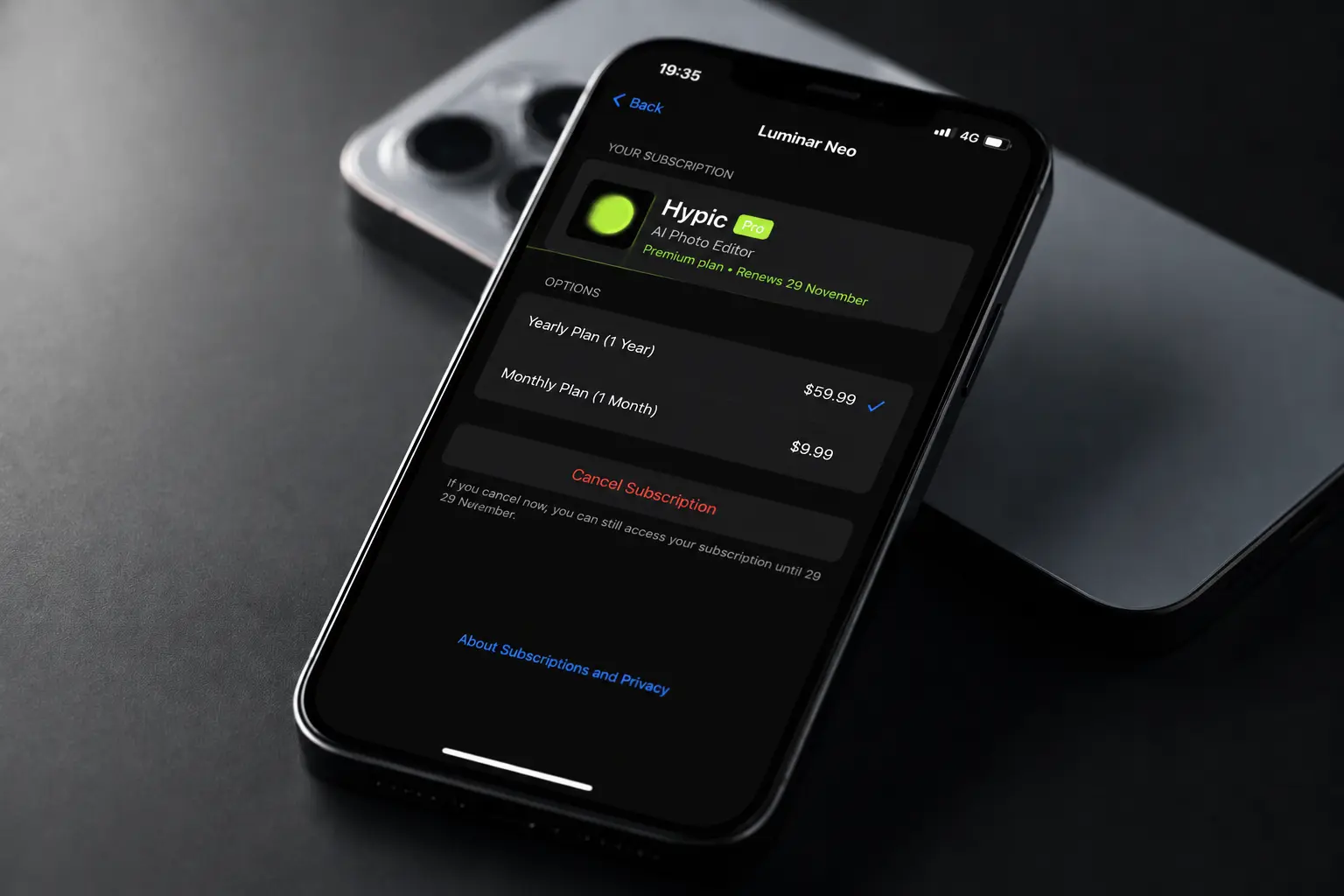
Hypic mod apk has quickly become one of the most downloaded AI photo editing apps thanks to its smart filters, portrait tools, and one-tap enhancements. But once the free trial ends or the monthly billing starts stacking up, many users begin looking for a way to stop the recurring charges.
The confusing part? Deleting the app usually does not cancel the subscription.
If you subscribed to Hypic Pro through the App Store, Google Play Store, or PayPal, the cancellation process depends entirely on the platform that handles your billing. This guide walks through every method step by step, explains what happens after cancellation, and covers refunds, trials, billing issues, and common mistakes people make when trying to stop Hypic auto renewal.
Understanding Hypic Pro Subscriptions and Automatic Renewal
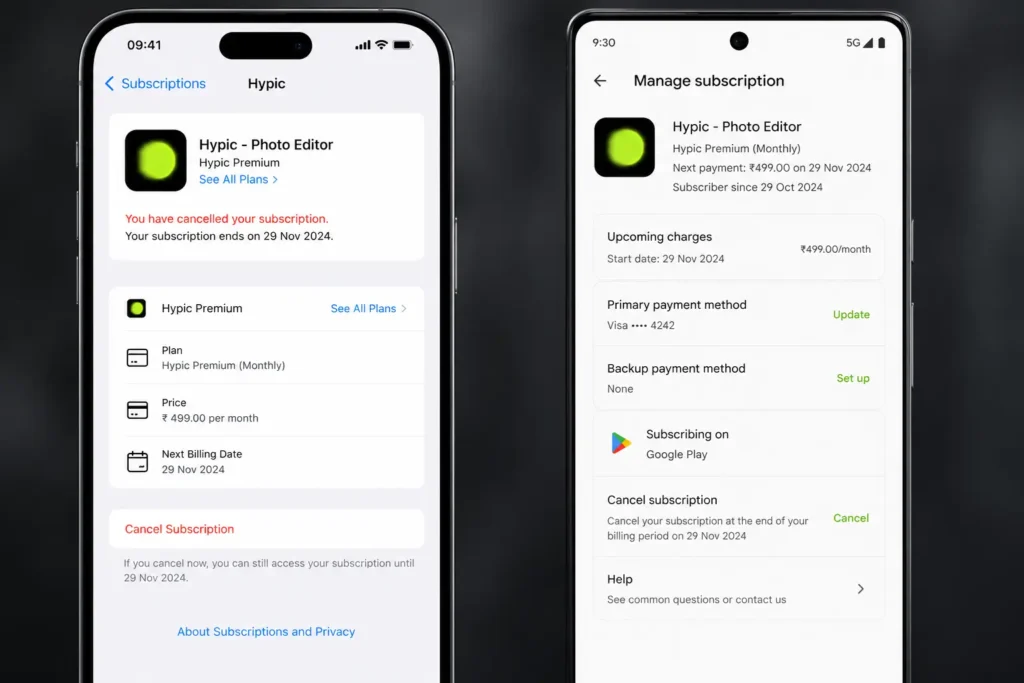
Hypic Pro operates on an auto-renewing subscription system similar to most modern AI photo editing apps. Once the free trial or paid plan starts, the billing renews automatically unless you manually turn it off.
The important thing to understand is that Hypic itself usually does not process the payment directly. The billing is handled by whichever platform you used during signup.
That could be:
- Apple App Store
- Google Play Store
- PayPal automatic payments
- Another connected billing provider
This is why deleting the app alone does not stop future charges.
Key Billing Terms You Should Know
- Hypic Pro renews automatically unless auto-renew is turned off.
- Canceling stops future charges, not your current access.
- Your premium features stay active until the billing period ends.
- Deleting the app does not stop billing.
- Free trials convert into paid plans automatically if not canceled before renewal.
- Some subscriptions may appear under merchant names like ByteDance Pte. Ltd. instead of “Hypic.”
If you are unsure where the subscription came from, check your email receipts first. Apple, Google, and PayPal each send separate payment confirmations.
How to Cancel Hypic Subscription on iPhone or iPad
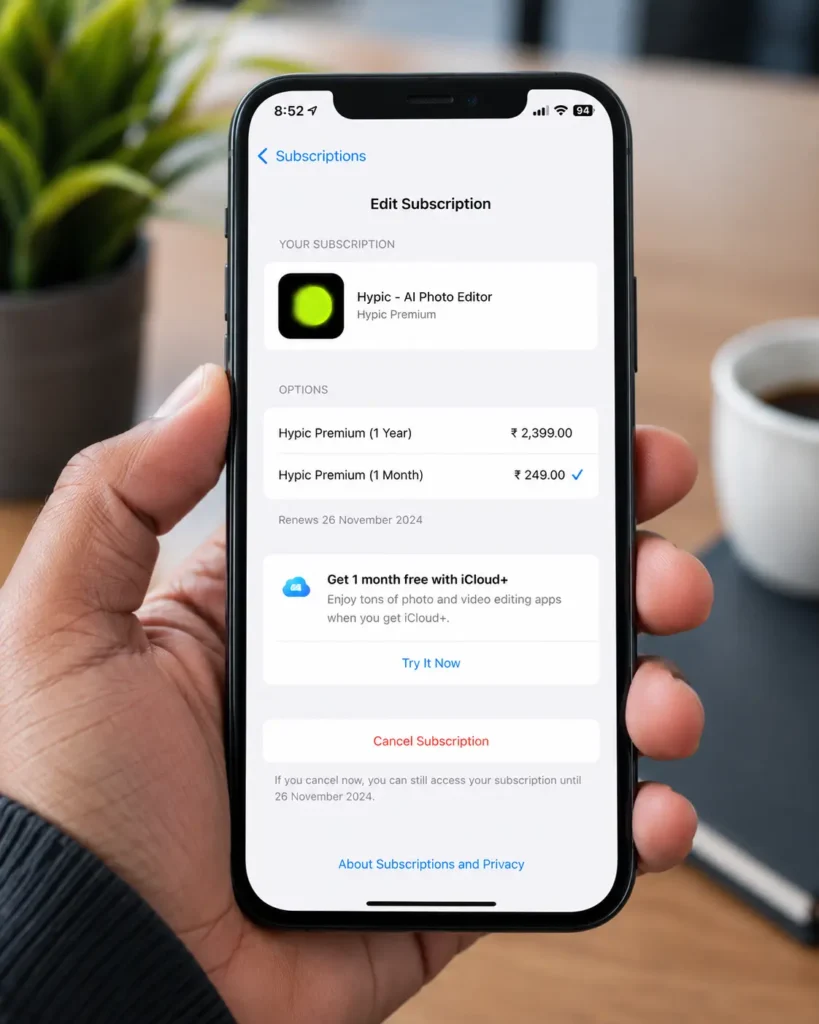
If you subscribed using an iPhone or iPad, your payment is most likely tied to your Apple ID account settings.
Steps to Cancel Hypic Subscription on iPhone
- Open the Settings app.
- Tap your Apple ID name at the top.
- Select Subscriptions.
- Find Hypic Pro Service Subscription.
- Tap Cancel Subscription.
- Confirm the cancellation.
After confirmation, Apple usually shows the exact date your premium access will expire.
What If Hypic Does Not Appear in Subscriptions?
This is one of the most common issues users run into.
If you cannot find Hypic in the subscription list:
- Check whether you used a different Apple ID.
- Look under the Expired subscriptions section.
- Confirm the App Store region matches the one used during purchase.
- Search your email inbox for Apple receipts mentioning Hypic or ByteDance.
If the subscription status already says Expired, it means auto renewal has already been turned off.
How to Cancel Hypic Subscription on Android Devices
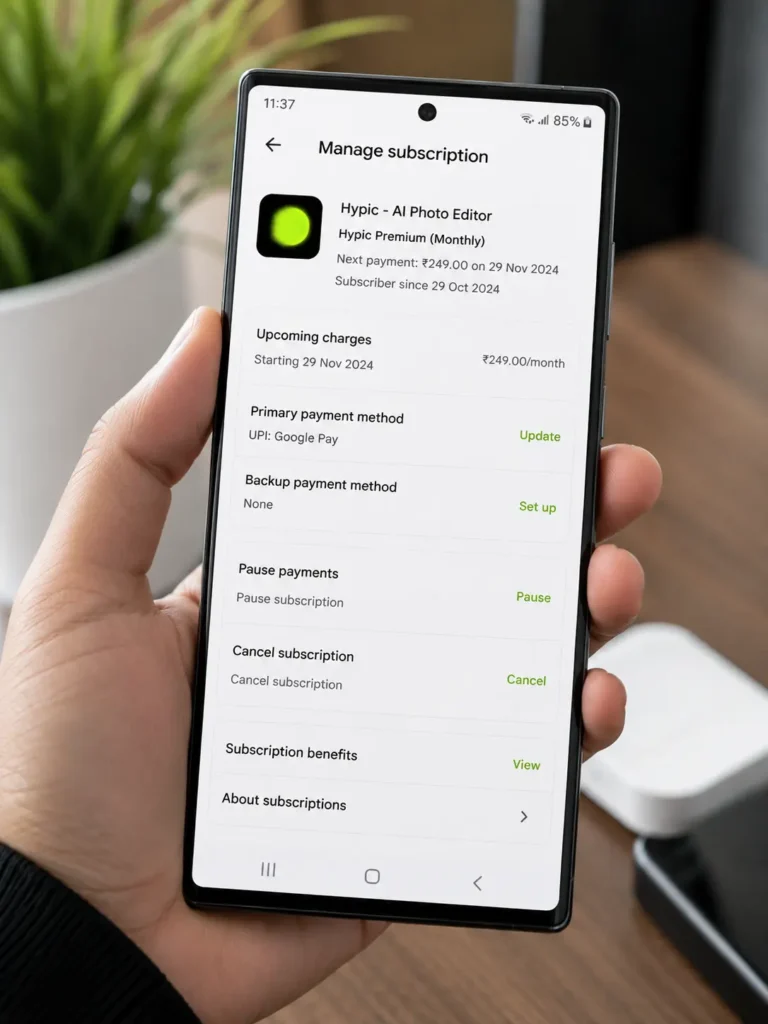
Android subscriptions are managed through the Google Play Store.
If you subscribed using an Android phone or tablet, you will need to stop the recurring payment directly inside your Google Play subscription settings.
Steps to Cancel Hypic Subscription on Android
- Open the Google Play Store app.
- Tap your profile picture in the top-right corner.
- Select Payments & subscriptions.
- Tap Subscriptions.
- Choose Hypic from the list.
- Tap Cancel subscription.
- Follow the confirmation prompts.
Before you confirm the cancellation, Google Play normally shows the exact date your Pro access will end.
Cancel Hypic Subscription Without Your Phone
You can also cancel from a desktop browser if your phone is unavailable.
- Visit the Google Play website.
- Sign in with the same Google account used for the subscription.
- Open Subscriptions.
- Select Hypic.
- Choose Cancel subscription.
Can’t Find Hypic in Google Play?
Try these checks before assuming the subscription is gone:
- Switch between multiple Google accounts.
- Check family-linked accounts.
- Search your Gmail inbox for Google Play receipts.
- Look for merchant names connected to ByteDance services.
A large percentage of cancellation issues happen simply because users are logged into the wrong Google account.
How to Cancel Hypic Subscription via PayPal
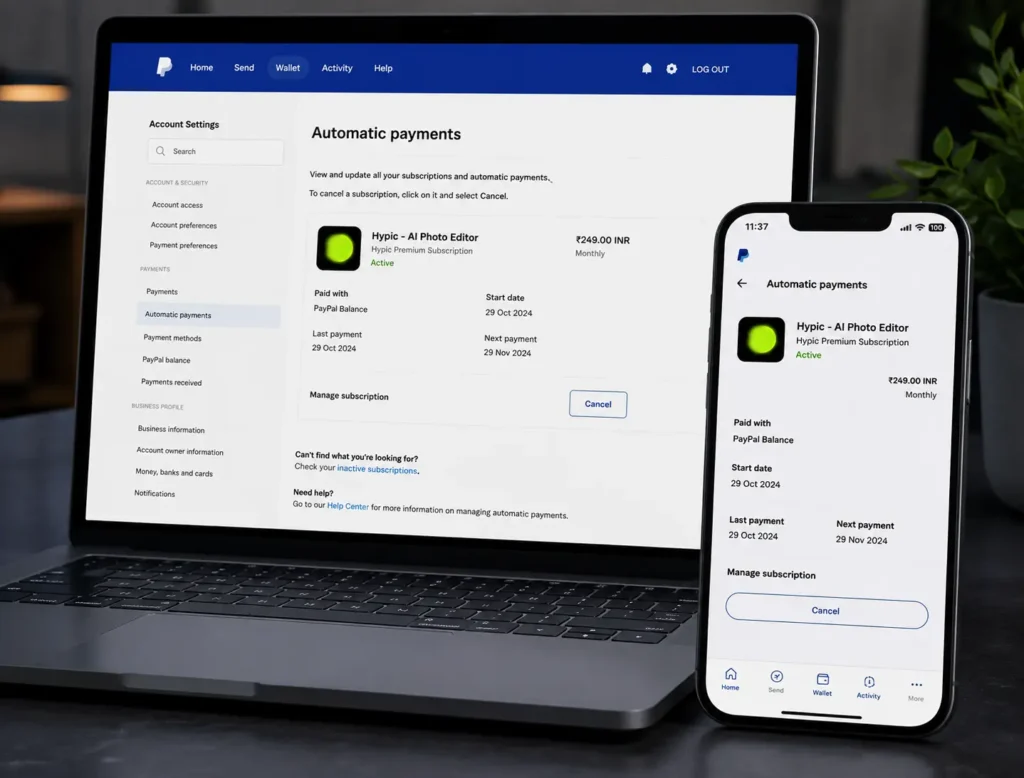
Some users subscribe through PayPal automatic billing instead of Apple or Google Play.
In that situation, the recurring payment must be canceled directly from your PayPal account dashboard.
Steps to Cancel Hypic Subscription Through PayPal
- Log into your PayPal account.
- Open Settings.
- Go to Payments.
- Select Automatic Payments or Manage Automatic Payments.
- Find Hypic or ByteDance in the merchant list.
- Open the billing agreement.
- Click Cancel or Remove PayPal as payment method.
Once canceled, PayPal should mark the agreement as inactive.
Important PayPal Tip
Removing your debit card or credit card alone does not always cancel the subscription agreement.
You must cancel the recurring authorization itself to fully stop future charges.
How to Identify Who Is Billing You
One of the biggest reasons users struggle to cancel Hypic is confusion about which platform actually handles the billing.
If you’re not even sure who is charging you, start with the payment receipt email. It usually tells you immediately whether the subscription came from Apple, Google Play, or PayPal.
|
Receipt Source |
Likely Billing Platform |
Where to Cancel |
|---|---|---|
|
Apple receipt email |
App Store subscription |
Apple ID subscriptions |
|
Google Play receipt |
Google Play billing |
Play Store subscriptions |
|
PayPal payment email |
PayPal automatic payments |
PayPal settings |
|
ByteDance merchant name |
Third-party or linked billing |
Payment provider dashboard |
This simple check saves a lot of time, especially if Hypic does not appear inside your subscriptions list.
What Happens After You Cancel Your Hypic Subscription?
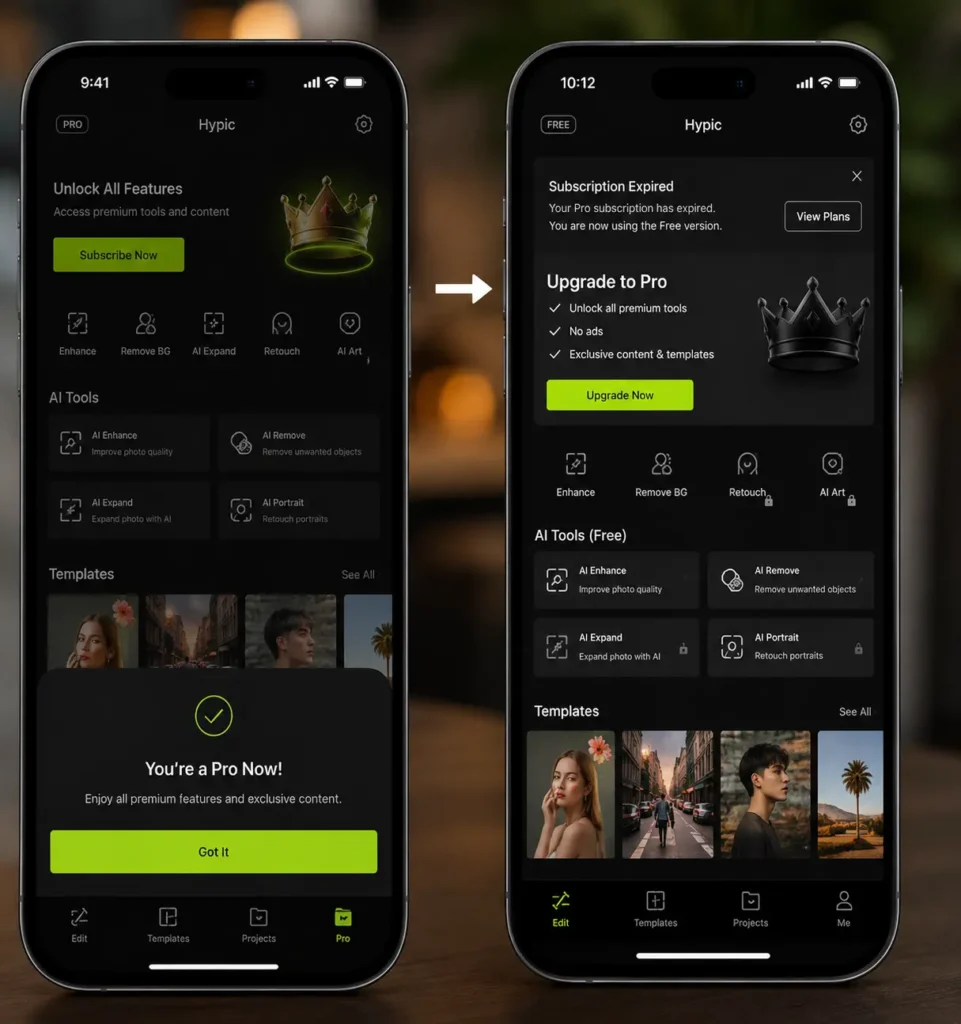
Canceling your subscription does not immediately remove your premium access.
Most users continue using Pro features until the current billing cycle officially ends.
That usually includes:
- AI enhancement tools
- Premium filters
- Advanced portrait editing
- Cloud-based effects
- Export tools tied to Pro access
Once the subscription expires, the app automatically switches back to the free version.
Some older projects that used premium assets may become partially locked until those effects are removed or replaced.
Account Deletion vs Subscription Cancellation
A common misunderstanding is thinking that deleting a Hypic account also stops the subscription.
It does not.
Deleting your account removes profile data and app history, but Apple, Google Play, or PayPal billing can still continue separately.
|
Action |
What It Does |
Stops Future Charges? |
|---|---|---|
|
Cancel Subscription |
Stops future renewals |
Yes |
|
Delete Account |
Removes profile and app data |
No |
How to Permanently Delete Your Hypic Account
If you want to remove your account completely:
- Open the Hypic app.
- Go to your profile settings.
- Open account management.
- Select Delete Account.
- Follow the verification process.
It is safer to cancel the subscription first before deleting the account itself.
Hypic Refund Policy and Trial Charge Disputes
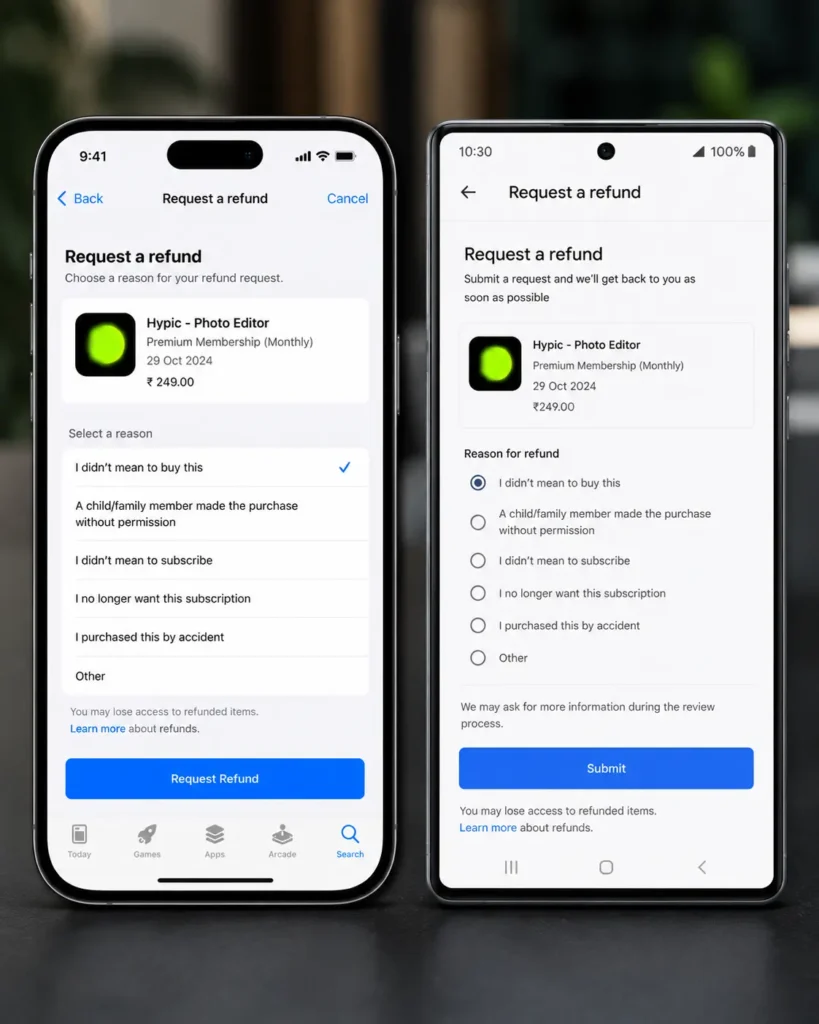
Refund requests for Hypic subscriptions are usually handled by the platform that processed the payment and not directly by Hypic itself.
That means Apple, Google Play, or PayPal decides whether your refund request is approved.
Requesting a Refund on iPhone
For Apple subscriptions:
- Visit the official Apple refund portal.
- Sign in with your Apple ID.
- Select Request a Refund.
- Choose the Hypic transaction.
- Submit your reason.
Approval depends on timing, account history, and regional policies.
Requesting a Refund on Android
For Google Play purchases:
- Open Google Play purchase history.
- Locate the Hypic transaction.
- Select Request a refund.
Google is generally more flexible within the first 48 hours after purchase.
Refund Situations That Often Get Approved
Users have a better chance of approval if:
- A child made the purchase accidentally
- The trial converted unexpectedly
- The app charged twice
- Billing happened after cancellation
- The subscription was unauthorized
Common Cancellation Mistakes to Avoid
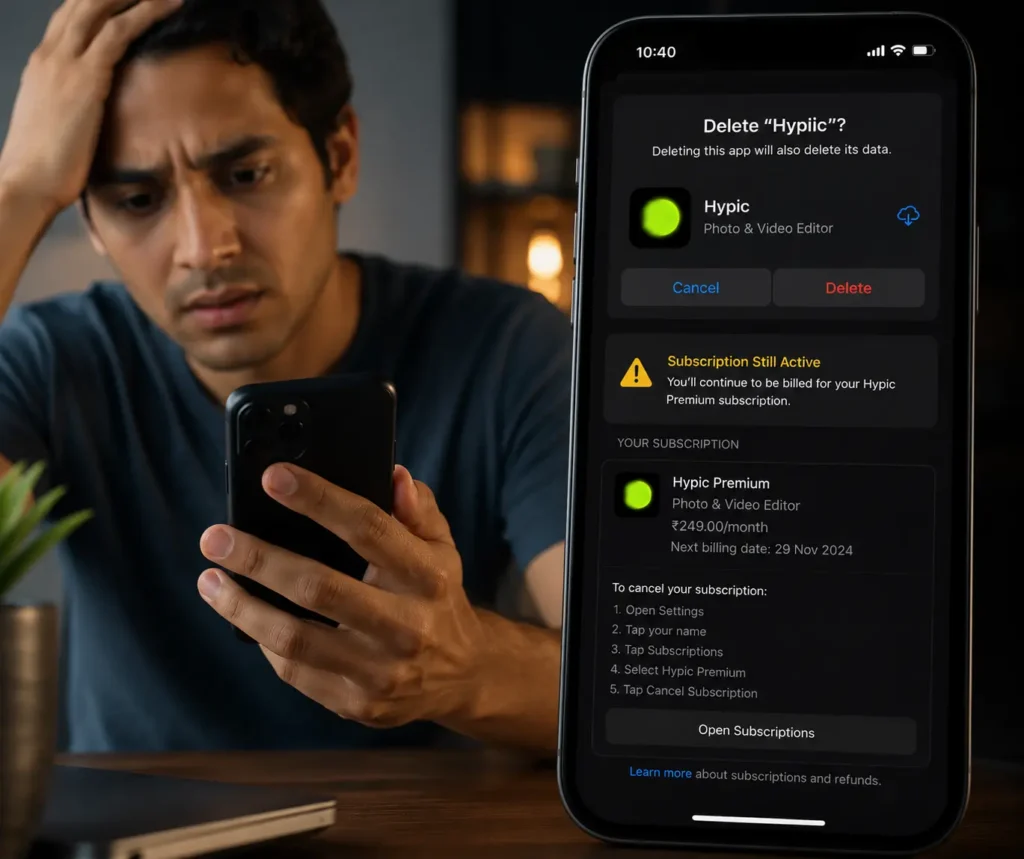
Deleting the App Without Canceling
This is easily the biggest mistake people make.
Removing or uninstalling Hypic from your phone does not cancel the subscription itself. The recurring billing continues until auto-renewal is manually turned off.
Waiting Until the Last Minute
Apple and Google usually recommend canceling at least 24 hours before renewal.
If you wait too long, the system may already process the next charge automatically.
Using the Wrong Account
People often forget they subscribed using:
- another Apple ID
- a secondary Google account
- a family-sharing account
- PayPal instead of direct billing
Always verify which account originally activated the subscription.
Best Free and Low-Cost Hypic Alternatives
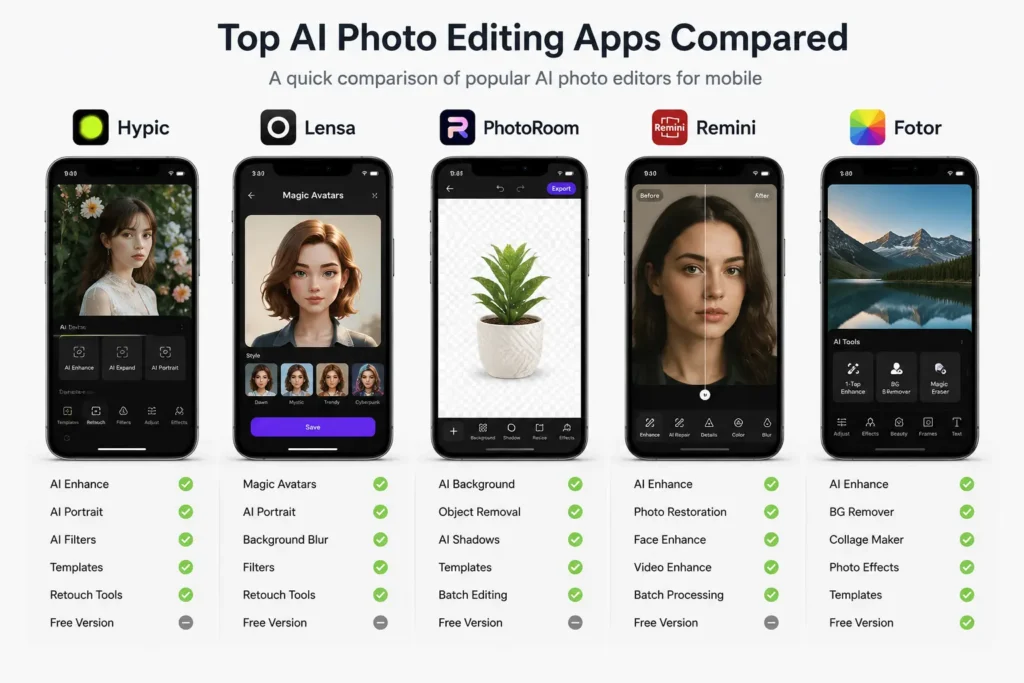
If you are canceling Hypic because of pricing, there are several good alternatives that still offer strong editing tools.
|
Alternative App |
Best Features |
Pricing |
Best For |
|
CapCut |
AI effects, templates, video/photo tools |
Free with optional Pro |
Social media creators |
|
YouCam AI Editor |
Portrait retouching, beauty filters |
Subscription model |
Selfies and portraits |
|
Snapseed |
Professional manual editing tools |
Completely free |
Advanced photo editing |
|
Pixlr |
Filters, overlays, quick edits |
Free with ads |
Casual editing |
Snapseed remains one of the strongest free editing apps for users who prefer manual photo control without recurring subscriptions.
Final Thoughts
Canceling a Hypic subscription is usually straightforward once you know which platform handles the billing. The biggest mistake people make is assuming that deleting the app automatically stops future charges, when in reality the subscription often continues through Apple, Google Play, or PayPal until auto-renewal is manually turned off.
Before leaving the process, it’s worth double-checking your subscription status one last time to make sure it shows as canceled or inactive. A quick verification now can save you from unexpected renewals later. And if you ever decide to return, you can always reactivate Hypic Pro again without creating a new account from scratch.