Can You Use Hypic AI Without Internet? (Full Offline Guide 2026)
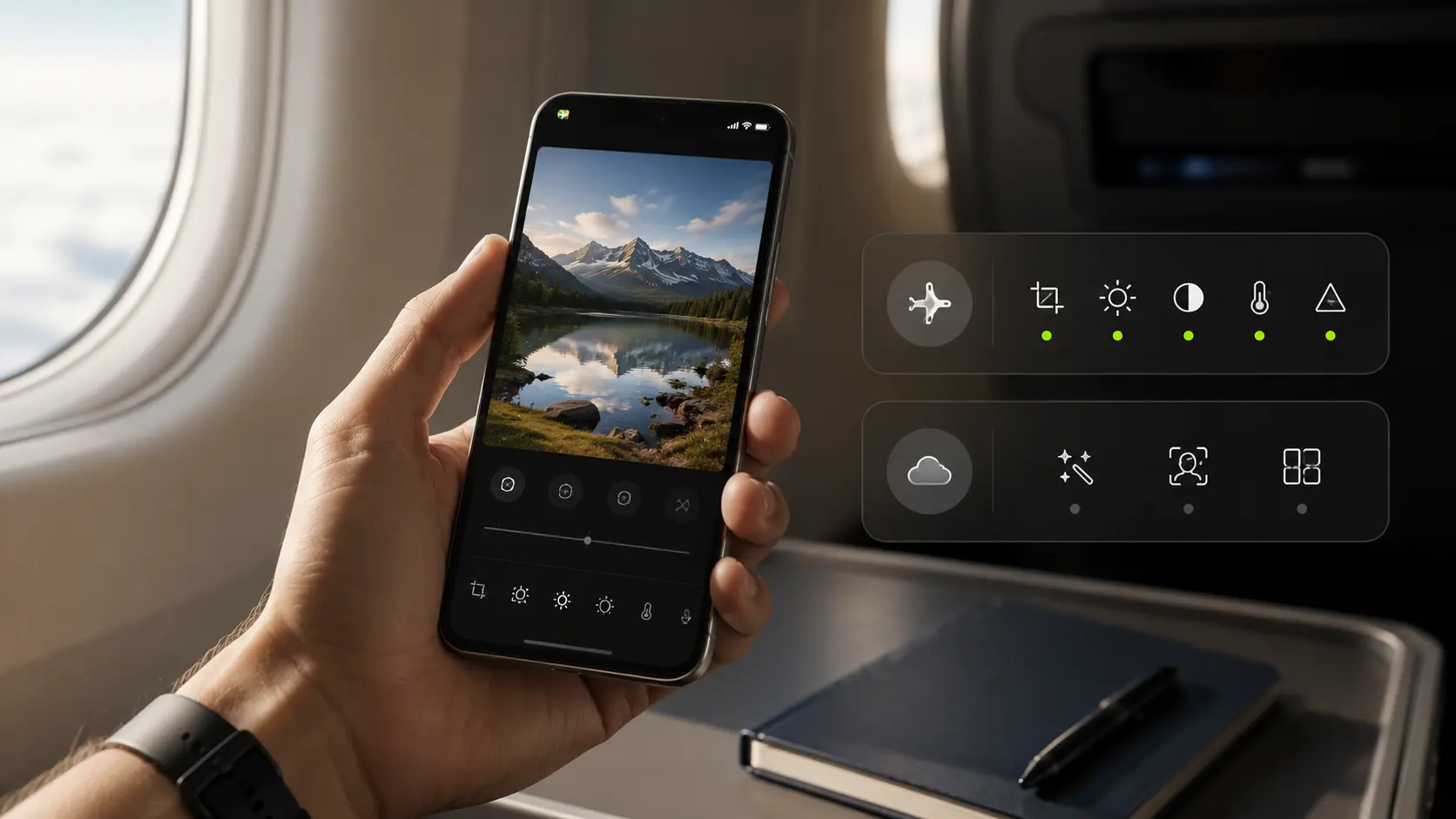
There’s nothing more frustrating than opening a photo editing app during travel or in airplane mode, only to realize half the features suddenly stop working. That’s exactly why many users ask the same question before relying on Hypic on the go: can you use Hypic AI without internet?
The short answer is yes.
You can use Hypic without internet for basic editing tasks like cropping, brightness adjustments, resizing, and applying previously downloaded filters. However, most AI-powered features, including AI background removal, AI avatar generation, and advanced enhancement tools, still require an active internet connection because they rely on cloud processing.
If you travel often, edit content outdoors, or simply want to avoid burning through mobile data, understanding these limits can save a lot of frustration later.
What Happens When You Use Hypic Without Internet?
Yes, you can use Hypic without internet for basic editing features like cropping, resizing, brightness adjustments, and applying previously downloaded filters. However, most AI tools, including AI background removal, avatar generation, and advanced beauty effects, still require an active internet connection to work properly.
That’s because Hypic works in two different ways behind the scenes.
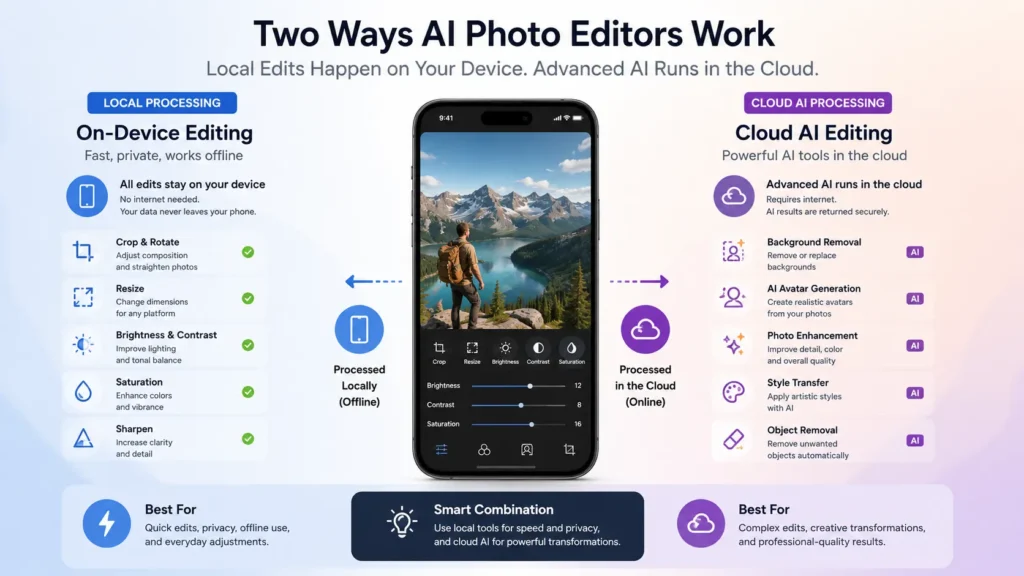
Some features run directly on your phone using local processing. Others rely on cloud-based AI servers that handle heavier image processing remotely. Once the app loses internet access, those server-powered tools simply cannot communicate with the system they depend on.
So while the app doesn’t become completely useless offline, it definitely becomes more limited.
Why Some Hypic Features Work Offline and Others Don’t
A lot of users assume all editing apps work the same way, but modern AI editors operate differently.
Basic tools such as:
- crop and resize
- rotation adjustments
- exposure controls
- contrast tuning
- saturation changes
- image sharpening
are lightweight enough for your phone to process locally. Your device handles these edits directly without needing external servers.
AI features are another story.
Tools like:
- AI avatar generation
- AI background replacement
- AI expand
- AI face retouch
- object removal
- AI enhancement
usually require cloud processing. The app uploads image data to remote servers where machine learning models process the edits and send the final result back to your phone. Without internet access, that entire process breaks.
This isn’t unique to Hypic either. Most AI-heavy editing apps work the same way today.
What You Can Still Do on Hypic Without Internet
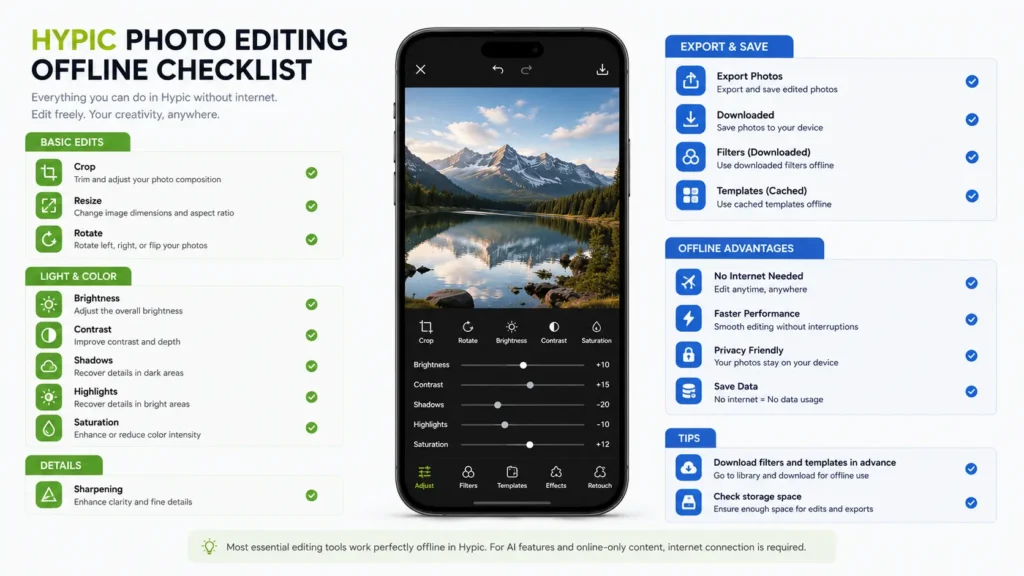
Even without Wi-Fi or mobile data, Hypic still handles several useful editing tasks surprisingly well.
Basic Photo Editing Still Works
If you mainly use the app for quick manual edits, you probably won’t notice huge problems offline.
You can still:
- crop and resize photos
- rotate images
- adjust brightness and contrast
- change highlights and shadows
- tweak warmth and saturation
- sharpen details manually
These tools run directly on your device, so they don’t rely on server communication.
For most casual users, that’s honestly enough for quick Instagram posts, travel edits, or basic content cleanup while away from Wi-Fi.
Previously Downloaded Filters Usually Remain Available
One thing many users don’t realize is that Hypic stores some filters and effects locally after they’ve been downloaded once.
So if you already opened certain presets or filters while connected to Wi-Fi, there’s a good chance they’ll continue working offline later.
This becomes surprisingly useful during flights, road trips, or low-signal travel areas where opening cloud-based apps can turn into a frustrating experience very quickly. Opening your favorite effects beforehand can make a big difference once you lose signal.
Cached Templates May Still Load
Some templates continue working offline if they were previously cached on your phone.
This depends on the version of the app and whether the assets were fully stored locally before disconnecting. New or trending templates usually won’t load because they’re streamed from Hypic’s servers in real time.
Still, commonly used layouts often remain accessible.
You Can Export Photos Normally
Saving edited photos to your device still works offline for standard edits.
Once you finish adjusting your image, Hypic can render and export the file directly to your phone gallery without needing cloud syncing.
That means you can continue editing during travel and upload everything later once you reconnect.
Features That Stop Working Without Internet
This is where most people get caught off guard.
Hypic markets itself heavily as an AI-powered photo editor, but many of those standout features are server-dependent.
AI Beauty and Enhancement Tools
Features like:
- AI Skin
- AI Hair
- AI Face Retouch
- AI Portrait Enhancement
- AI Flash
typically stop working immediately once internet access disappears.
In most cases, the app either shows an endless loading icon or throws a network timeout error.
AI Background Removal
Automatic background removal is another feature that relies heavily on cloud AI systems.
The app needs advanced segmentation models to accurately separate subjects from the background, and those models usually run on external servers instead of your phone hardware.
Without internet, automatic cutouts usually fail completely.
New Templates and Online Assets
Trending templates, stickers, and downloadable effects also stop loading offline.
Instead of appearing normally, you may notice:
- blank placeholders
- grey thumbnails
- failed downloads
- refresh errors
This happens because the app cannot connect to Hypic’s online asset library.
Subscription Verification Can Occasionally Fail
Some premium features require periodic online verification checks.
If the app stays disconnected for too long, certain premium filters or tools may temporarily lock until your account reconnects and refreshes properly.
It doesn’t happen to everyone, but it’s something worth knowing before traveling.
Hypic Offline Features vs Online Features
If you just want a quick answer instead of testing every feature yourself, this table breaks down exactly what works offline in Hypic and what still depends on an internet connection.
| Feature | Works Offline? | Notes |
| Crop and resize | Yes | Fully local processing |
| Brightness and contrast adjustments | Yes | Runs on-device |
| Previously downloaded filters | Usually | Depends on cached assets |
| Exporting edited photos | Yes | Saves directly to gallery |
| AI background removal | No | Requires cloud AI |
| AI avatar generation | No | Server-dependent |
| AI image expansion | No | Internet required |
| New templates and stickers | No | Needs online asset loading |
| Cloud backup and syncing | No | Requires active connection |
Understanding this difference between local editing and cloud AI is the key to using Hypic more effectively offline.
Does Hypic Mod APK Work Offline Better?
A lot of users search for terms like “hypic mod apk offline” hoping a modified version unlocks everything without internet.
That’s not really how it works.
Some modded APKs may bypass premium verification locally, which can unlock certain paid filters or templates offline.
But AI processing still depends on external servers.
So even if a modified app unlocks premium menus, it cannot magically run cloud-based AI features without an actual internet connection.
There are also some real risks with unofficial APK files, including:
- malware
- unstable app performance
- corrupted storage
- security vulnerabilities
- random crashes
For most users, sticking with the official version is the safer option.
How to Prepare Hypic for Offline Editing
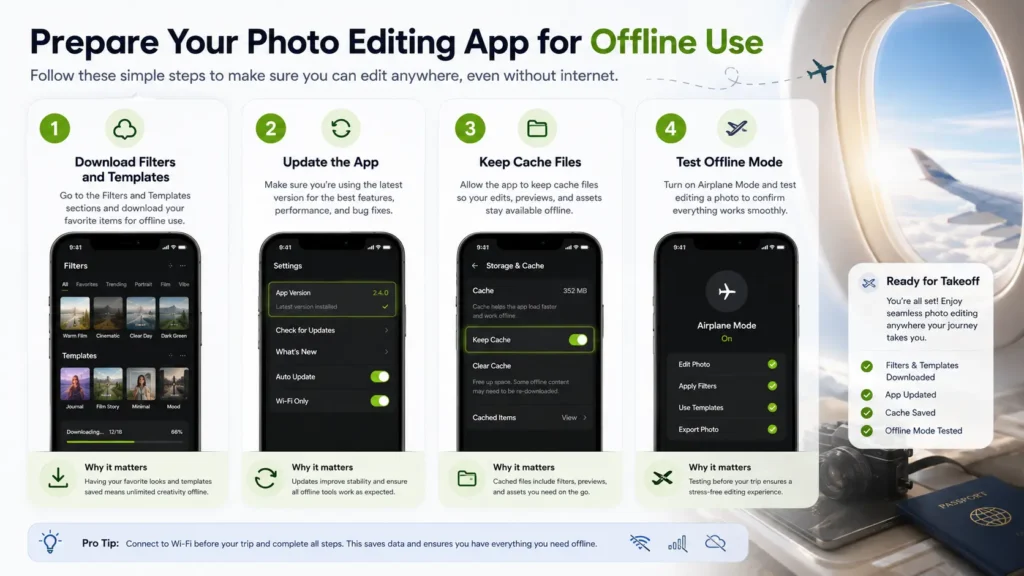
If you know you’ll be editing without internet later, a little preparation goes a long way.
Download Filters and Assets Before Traveling
Before going offline, open your favorite:
- filters
- templates
- fonts
- stickers
- presets
while connected to stable Wi-Fi.
Once downloaded, many of these assets stay stored locally and remain usable later.
Avoid Clearing App Cache
Many phone cleaner apps automatically remove cached files to free storage space.
Unfortunately, that can also delete your offline templates and downloaded effects right before you need them most.
If you rely on offline editing, avoid clearing Hypic’s cache unnecessarily.
Update the App Before Long Trips
Using the latest version usually improves app stability and offline asset handling.
It’s a simple step, but it can reduce crashes and loading problems later.
Common Hypic Offline Problems and Quick Fixes
“Network Error” Messages
This usually means you accidentally selected a feature that still requires cloud AI processing.
Switching back to manual editing tools normally fixes the issue.
App Crashes in Airplane Mode
Some users report startup crashes when launching Hypic with zero connectivity.
A simple workaround is:
- briefly reconnect to the internet
- fully open the app
- switch back to airplane mode afterward
This sometimes bypasses startup verification checks.
Missing Filters or Blank Templates
If certain filters suddenly disappear offline, they probably were never fully downloaded locally.
This can also happen after:
- reinstalling the app
- clearing storage
- using aggressive phone cleaner apps
Hypic vs Other Offline Photo Editing Apps
Some editing apps handle offline usage much better than others.
Adobe Lightroom Mobile
Lightroom Mobile offers stronger offline support for professional editing workflows. Most color correction and RAW editing tools work directly on-device.
Snapseed
Snapseed remains one of the best offline photo editing apps available today.
Almost every feature works locally without internet, which makes it far more reliable for completely offline editing sessions.
Remini
Remini is even more dependent on cloud AI than Hypic.
Without internet access, Remini becomes extremely limited, while Hypic still allows standard manual editing and exporting.
Final Thoughts
Hypic is still a solid editing app when you’re offline, just not in the way most people expect.
If your workflow mainly involves manual edits, color adjustments, cropping, or using downloaded filters, the app remains perfectly usable without internet. With a little preparation beforehand, it can handle quick edits during flights, travel, or low-signal situations without much trouble.
But if you rely heavily on AI tools like background removal, avatar generation, or automated beauty enhancements, internet access is still essential. Those features simply aren’t designed for full offline use yet.
The best approach is to think of Hypic as a hybrid editor: part offline photo editor, part cloud-powered AI tool. Once you understand where that line exists, the app becomes much easier and far less frustrating to use in real-world situations.